Looking to install IPTV on Firestick? You’ve come to the right place. The Amazon Fire TV Stick is one of the most popular devices for streaming IPTV, and for good reason – it’s affordable, powerful, and incredibly easy to use. This comprehensive guide will show you exactly how to install IPTV on Firestick in 2026, step by step.
Whether you’re a complete beginner or tech-savvy user, this guide covers everything you need to know about setting up IPTV on Firestick, including multiple installation methods, troubleshooting tips, and optimization techniques for the best streaming experience.
Why Use IPTV on Firestick?
Before we dive into how to install IPTV on Firestick, let’s understand why this combination is so popular:
- Affordable Hardware: Fire TV Sticks cost $30-60, making them accessible to everyone
- User-Friendly Interface: Amazon’s interface is intuitive and easy to navigate
- Portable: Take your IPTV anywhere – just plug into any TV with HDMI
- Alexa Integration: Voice control for hands-free operation
- 4K Support: Fire TV Stick 4K models support ultra-high-definition streaming
- App Availability: Compatible with virtually all IPTV apps and players
- Regular Updates: Amazon continually improves the Fire OS
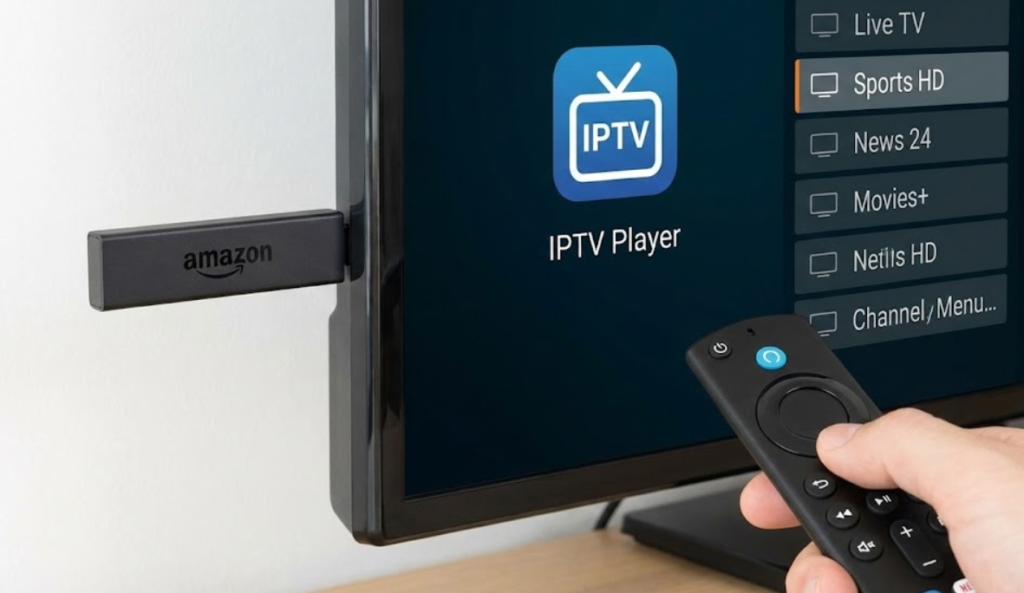
What You Need Before Installing IPTV on Firestick
📋 Requirements Checklist:
- Amazon Fire TV Stick (any model: basic, Lite, 4K, or 4K Max)
- Active internet connection (minimum 10 Mbps for HD, 25+ Mbps for 4K)
- IPTV subscription (like IPTV Architect)
- TV with HDMI port
- Power outlet for Fire Stick
- IPTV login credentials (provided by your service)
- 10-15 minutes for setup
Method 1: Installing IPTV on Firestick Using Downloader App
This is the most popular and easiest method to install IPTV on Firestick. The Downloader app allows you to download and install IPTV apps directly on your Fire Stick.
1Enable Apps from Unknown Sources
First, you need to allow installation of third-party apps on your Firestick:
- From the Fire TV home screen, go to Settings
- Select My Fire TV (or Device on older models)
- Click on Developer Options
- Select Install Unknown Apps
- Find and select Downloader
- Toggle the switch to ON
2Install Downloader App
Now let’s get the Downloader app:
- Return to the Fire TV home screen
- Select the Search icon (magnifying glass)
- Type “Downloader” using the on-screen keyboard
- Select the Downloader app by AFTVnews.com
- Click Download or Get
- Wait for installation to complete
- Click Open when finished
3Download Your IPTV App
Use Downloader to get your IPTV application:
- Open the Downloader app
- Click Allow if prompted for permissions
- In the URL field, enter the download link for your IPTV app (provided by IPTV Architect support)
- Click Go
- Wait for the APK file to download (usually 10-30 seconds)
- The installer will appear automatically
4Install the IPTV App
Complete the installation:
- When the APK opens, click Install
- Wait for installation to complete (5-15 seconds)
- Click Done (not Open yet)
- When Downloader asks to delete the file, click Delete
5Configure Your IPTV Service
Now set up your IPTV on Firestick:
- From Fire TV home, go to Settings > Applications > Manage Installed Applications
- Find your IPTV app in the list and click it
- Select Launch Application
- Enter your IPTV login credentials (username and password from IPTV Architect)
- Or enter your M3U URL if that’s how your service works
- Click Login or Add Playlist
- Wait for channels to load (may take 30-60 seconds)
💡 Pro Tip
After installing your IPTV app, add it to your Fire TV favorites for quick access. Press and hold the Home button on your remote, select “Apps,” find your IPTV app, press the Menu button (three lines), and select “Move to Front.”
Method 2: Installing IPTV on Firestick via Amazon App Store
Some IPTV player apps are available directly in the Amazon App Store, making installation even easier for IPTV on Firestick:
Popular IPTV Players in Amazon Store:
- IPTV Smarters Pro: User-friendly with EPG support
- Tivimate: Premium player with excellent features
- Perfect Player: Highly customizable IPTV player
- OTT Navigator: Modern interface with recordings
Installation Steps:
- From Fire TV home screen, select Search
- Type the name of your preferred IPTV player
- Select the app from search results
- Click Download or Get
- Once installed, click Open
- Enter your IPTV Architect credentials
- Start watching!
Configuring IPTV on Firestick for Best Performance
After installing IPTV on Firestick, optimize your setup for the best streaming experience:
Internet Connection Optimization
- Use Ethernet: If you have Fire TV Stick 4K or 4K Max, use the ethernet adapter for wired connection
- WiFi Placement: Keep Fire Stick close to your router, or use 5GHz WiFi band
- Speed Test: Run a speed test app to verify you have adequate bandwidth
- Close Background Apps: Force stop unused apps to free resources
Fire TV Stick Settings
- Go to Settings > Preferences > Data Monitoring
- Turn off Data Monitoring to prevent throttling
- Go to Settings > Applications > Appstore
- Disable Automatic Updates (prevent interruptions during streaming)
IPTV App Settings
Within your IPTV player app:
- Buffer Size: Increase buffer to 20-30 seconds for smoother playback
- Stream Format: Select TS (Transport Stream) for better stability
- Hardware Acceleration: Enable if available for better performance
- EPG Update: Set Electronic Program Guide to update during off-hours
Get IPTV Service for Your Firestick
Ready to enjoy 47,000+ channels on your Firestick? IPTV Architect provides fast setup, premium support, and works perfectly on all Fire TV Stick models. Get your subscription and start streaming in minutes!Get IPTV Service Now
Troubleshooting Common IPTV on Firestick Issues
Experiencing problems with your IPTV on Firestick? Here are solutions to common issues:
Issue 1: Buffering or Freezing
Solutions:
- Check your internet speed (needs 10+ Mbps for HD)
- Move closer to WiFi router or use ethernet
- Restart your Fire Stick (Settings > My Fire TV > Restart)
- Clear IPTV app cache (Settings > Applications > Manage Installed Applications > [Your App] > Clear Cache)
- Lower stream quality in app settings
- Restart your router
Issue 2: App Won’t Install
Solutions:
- Verify “Apps from Unknown Sources” is enabled
- Check that you downloaded the correct APK version
- Ensure you have enough storage space (Settings > My Fire TV > About > Storage)
- Restart Fire Stick and try again
- Re-download the APK file
Issue 3: Channels Not Loading
Solutions:
- Verify your IPTV subscription is active
- Check that you entered correct login credentials
- Try re-entering your username and password
- Contact IPTV Architect support for account verification
- Update your IPTV player app to latest version
Issue 4: No Sound
Solutions:
- Check Fire Stick volume (not on mute)
- Verify TV volume and input settings
- Go to Settings > Display & Sounds > Audio > Dolby Digital Output and try toggling it
- Restart the channel or app
- Check HDMI cable connection
Issue 5: App Crashes
Solutions:
- Force stop the app (Settings > Applications > Manage Installed Applications > [App] > Force Stop)
- Clear app data and cache
- Uninstall and reinstall the app
- Update Fire OS to latest version
- Factory reset Fire Stick as last resort
⚠️ Important Note
Before factory resetting your Fire Stick, make sure you have your Amazon account credentials and IPTV login information written down. A factory reset erases everything and requires complete setup from scratch.
Best IPTV Players for Firestick in 2026
Choosing the right player enhances your IPTV on Firestick experience. Here are the top options:
1. IPTV Smarters Pro
Best for: Beginners
- Clean, intuitive interface
- Built-in EPG (Electronic Program Guide)
- Parental controls
- Multiple playlist support
- Catch-up TV feature
- Free to use
2. TiviMate
Best for: Advanced Users
- Beautiful, modern interface
- TV Guide with multiple layouts
- Recording capabilities (premium)
- Multiple playlists
- Customizable themes
- Premium version: $5/year
3. Perfect Player
Best for: Customization
- Highly customizable
- Supports multiple playlist formats
- Playlist editor
- Various skins and themes
- Free with no ads
4. OTT Navigator
Best for: Features
- Modern Netflix-style interface
- Built-in VOD support
- Recording and timeshift
- Multi-screen view
- Premium features
Maintaining Your IPTV on Firestick
Keep your IPTV on Firestick running smoothly with regular maintenance:
Weekly Maintenance
- Clear app cache for your IPTV player
- Check for app updates
- Restart Fire Stick once per week
Monthly Maintenance
- Check Fire OS for system updates
- Review and uninstall unused apps to free space
- Verify your IPTV subscription status
- Update EPG in your IPTV player
Storage Management
Fire Sticks have limited storage. Keep it optimized:
- Go to Settings > Applications > Manage Installed Applications
- Sort by size to see largest apps
- Clear cache for apps you don’t use regularly
- Uninstall apps you no longer need
- Aim to keep at least 500MB free space
💡 Storage Tip
If your Fire Stick is running slow, clearing the cache of large apps like Prime Video, Netflix, and your IPTV player can free up significant space and improve performance.
Security and Privacy for IPTV on Firestick
Protect your privacy while using IPTV on Firestick:
VPN Considerations
While IPTV Architect operates legally, some users prefer using VPNs for privacy. If you choose to use a VPN:
- Select a VPN with Fire Stick app (ExpressVPN, NordVPN, Surfshark)
- Ensure the VPN doesn’t slow your connection below 10 Mbps
- Connect to nearby servers for best speed
- Enable VPN before starting your IPTV app
Account Security
- Never share your IPTV login credentials
- Change your password regularly
- Don’t use the same password as other accounts
- Enable two-factor authentication on your Amazon account
Advanced Tips for IPTV on Firestick
Take your IPTV on Firestick experience to the next level:
Creating Favorites Lists
Most IPTV players let you create custom favorites lists:
- Browse to a channel you watch frequently
- Press and hold the select button
- Choose “Add to Favorites” or similar option
- Create multiple lists (Sports, Movies, News, Kids, etc.)
- Access your favorites from the main menu
Using Parental Controls
Protect children from inappropriate content:
- Open your IPTV player settings
- Find Parental Controls or Lock Settings
- Enable parental controls
- Set a 4-digit PIN
- Select channels or categories to lock
- Locked channels will require PIN to view
Catch-Up TV Feature
Never miss your favorite shows:
- Many IPTV services offer catch-up TV (replay)
- Browse the EPG to past time slots
- Select shows that aired in the last 3-7 days
- Watch at your convenience
Comparing Firestick Models for IPTV
Which Fire Stick is best for IPTV on Firestick?
Fire TV Stick Lite ($30)
Best for: Budget users
- 1080p Full HD streaming
- Quad-core processor
- 8GB storage
- Handles IPTV well but may occasionally buffer
Fire TV Stick (3rd Gen) ($40)
Best for: Most users
- 1080p Full HD streaming
- Alexa voice remote with TV controls
- Better processor than Lite
- Excellent IPTV performance
Fire TV Stick 4K ($50)
Best for: 4K TV owners
- 4K Ultra HD streaming
- HDR, Dolby Vision, Dolby Atmos
- Faster processor
- Perfect for 4K IPTV content
Fire TV Stick 4K Max ($55)
Best for: Power users
- 4K Ultra HD streaming
- 40% more powerful than 4K model
- WiFi 6 support
- Best performance for IPTV
- No buffering even with multiple apps
🎯 Recommendation
For IPTV on Firestick, we recommend the Fire TV Stick 4K or 4K Max. The extra processing power ensures smooth streaming, and 4K support future-proofs your setup. However, the standard Fire TV Stick (3rd Gen) works great for most users on a budget.
IPTV on Firestick: Frequently Asked Questions
Is it legal to use IPTV on Firestick?
Yes, using IPTV on Firestick is completely legal. IPTV technology itself is legitimate and used by companies like Netflix, Hulu, and YouTube TV. The legality depends on the IPTV service you choose. IPTV Architect operates legally with appropriate licensing and content rights.
How much internet speed do I need for IPTV on Firestick?
For standard definition (SD), you need at least 3-5 Mbps. For HD streaming, 10-15 Mbps is recommended. For 4K content, you should have 25-50 Mbps. These are per-stream requirements, so add more if multiple devices will stream simultaneously.
Can I use multiple IPTV services on one Firestick?
Yes! You can install multiple IPTV player apps and add different service credentials to each. This allows you to switch between services or use them for different content types.
Will IPTV on Firestick work outside my home country?
Yes, IPTV on Firestick works anywhere with internet connection. The portability is one of its biggest advantages. Just plug your Fire Stick into any TV with HDMI and connect to WiFi.
How do I update my IPTV app on Firestick?
If you installed via Downloader, you’ll need to manually download and install updates using the same process. Apps from the Amazon App Store update automatically if you have auto-updates enabled.
Conclusion: Enjoying IPTV on Firestick
Installing and using IPTV on Firestick is straightforward once you know the steps. Whether you chose the Downloader method or Amazon App Store installation, you now have access to thousands of channels and endless entertainment right on your Fire TV Stick.
Remember these key points for the best IPTV on Firestick experience:
- Maintain a strong internet connection (10+ Mbps minimum)
- Keep your Fire Stick and apps updated
- Clear cache regularly to maintain performance
- Use a reliable IPTV service like IPTV Architect
- Optimize settings for your specific setup
With IPTV Architect on your Firestick, you have access to 47,000+ live channels, 200,000+ movies and series, sports from around the world, and premium entertainment – all in one convenient package. The setup takes less than 15 minutes, and you’ll be streaming in no time.
Start Streaming IPTV on Your Firestick Today!
Get IPTV Architect and enjoy unlimited entertainment on your Fire TV Stick. Easy setup, premium support, and 47,000+ channels. Try it free for 24 hours – no credit card required!Get Your IPTV Subscription